Whenever I start teaching programming, the very first thing I tell my students is this:
“Python installation is like setting up your kitchen before cooking. If the kitchen isn’t ready, nothing else works.”
So let’s set up your kitchen properly on every device.
Install Python on Windows
Most of my students use Windows, so this is usually our starting point.
Step 1 — Download Python
Go to the official website:
👉 https://www.python.org
Click Download Python (it usually shows the latest version automatically).
Step 2 — IMPORTANT Checkbox
When you open the installer:
✅ Check Add Python to PATH
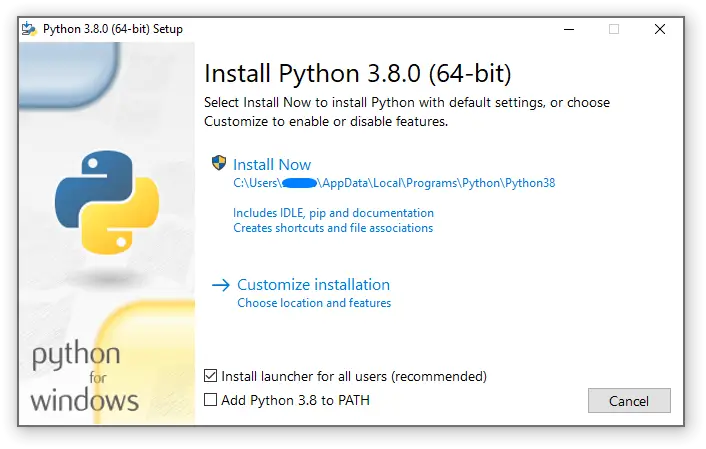
This step is critical.
I always say:
PATH is like telling your computer where the kitchen is located.
If you skip it, your system won’t know where Python lives.
Step 3 — Install
Click:
Install NowWait for completion.
Step 4 — Verify Installation
Open Command Prompt:
python --versionIf you see something like:
Python 3.12.1Congratulations — your system is ready.
Install Python on Mac
Mac usually already has Python, but I prefer installing the latest version.
Step 1 — Download
Again from:
python.orgChoose macOS installer.
Step 2 — Install Package
Just open the .pkg file and follow instructions.
Mac installation is usually smoother than Windows.
Step 3 — Verify
Open Terminal:
python3 --versionNotice I use python3, not python.
Why?
Because macOS sometimes keeps older Python versions for system use.
Install Python on Linux
Here’s the fun part: most Linux systems already have Python installed.
I tell students:
Linux without Python is like tea without sugar — rare.
Still, we confirm or install latest version.
Ubuntu / Debian
sudo apt update
sudo apt install python3 python3-pipVerify
python3 --versionDone.
Install Python on Mobile (Android / iPhone)
Yes — you can learn Python from your phone too. Many beginners start this way.
Android — My Recommended App
Install:
Pydroid 3
From Play Store.
It includes:
- Python interpreter
- Libraries
- Code editor
Basically a mini laptop in your pocket.
iPhone (iOS)
Install:
Pythonista or Pyto
These apps work well for learning basics.
How I Explain Python to Beginners
When students ask me:
“Sir, what exactly did we install?”
I explain like this:
Python is an interpreter — a translator between human logic and computer language.
Example:
You write:
print("Hello Students")Python converts it into instructions the computer understands.
First Test Program (Everyone Must Do This)
After installation, I always make students run this:
pythonThen inside Python:
print("I am ready to learn Python")If it prints successfully — you’re officially a programmer now 🎉
⚠️ Common Beginner Problems
Problem 1 — “Python not recognized”
Solution:
You forgot PATH checkbox (Windows).
Fix by reinstalling or adding PATH manually.
Problem 2 — Multiple Python versions
Use:
python3instead of python.
🎯 My Teaching Advice
Don’t worry about tools too much.
I tell my students:
A carpenter doesn’t become skilled because of tools — but because of practice.
Once Python runs — start coding immediately.